Product Photography
A matte white skincare bottle on a pale stone surface, soft side lighting, a warm beige background, subtle natural shadows, minimal product photography, no added text.
Text to Image
Turn your ideas into images with AI. Describe what you want to create, choose an available model and image size, and generate a visual starting point for your next project.
Already have an image? Edit it with a text prompt →Credits · image models
Describe the subject, setting, and style.
0/3000
Loading available models…
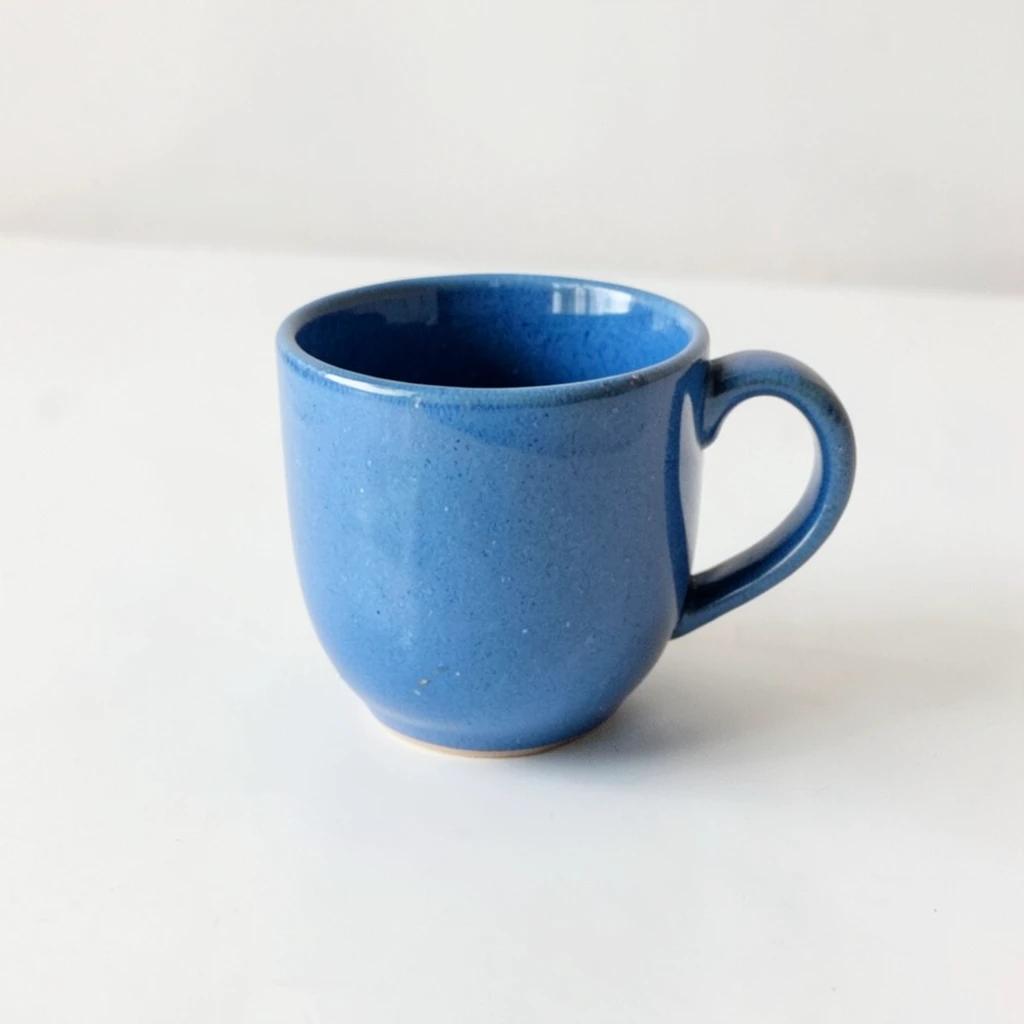
Blue ceramic cup
Original prompt · English
A blue ceramic cup on a plain white table, product photograph, no text, no people
Example image · not your output
Try these starting points in the generator. These are prompt suggestions, not verified image results. Results can vary between models and generations.
A matte white skincare bottle on a pale stone surface, soft side lighting, a warm beige background, subtle natural shadows, minimal product photography, no added text.
A small bookshop on a quiet rainy street, warm light glowing through the windows, muted blue and orange colors, hand-drawn editorial illustration, subtle paper texture.
A winding path through a misty pine forest at sunrise, soft golden light between the trees, layered depth, natural colors, cinematic landscape photography.
Write a prompt that explains what should appear in the image. Begin with the main subject, then add useful details about the environment, composition, style, or lighting.
You do not need to describe everything at once. A focused request makes it easier to understand which parts of the result worked and what you want to change next.
Select an available model and image size. A square format may suit a compact visual, while portrait and landscape formats provide different compositions.
Review the estimated credit cost and your available balance before generating. Available settings and costs may differ between models, so check the current options in the tool rather than assuming every model works the same way.
Generate the image and compare it with your original intention. Check the subject, framing, lighting, and any details that matter to your project.
If the result is not what you wanted, revise the prompt and try again. Changing one main instruction at a time can make it easier to identify which wording produces a more useful result.
A useful prompt describes a visual scene rather than asking for a vague improvement. “A beautiful product photo” leaves many decisions open. Naming the product, surface, lighting, and background gives the model a clearer direction.
A practical structure is:
Subject + setting + composition + style + lighting
For example:
“A blue ceramic vase on a wooden shelf, centered composition, realistic interior photography, soft afternoon light.”
Start with the details that matter most. If the image needs a simple background, say so. If the subject should be shown close up or from a particular angle, include that instruction.
Avoid adding a long list of conflicting styles. Requests such as “minimal, highly detailed, abstract, photorealistic, and cartoon” can make your intention harder to interpret. Choose a clear direction first, then explore variations.
AI-generated images can still contain inaccurate lettering, unusual anatomy, or inconsistent details. Treat the output as something to inspect, not as a guaranteed finished asset.
Try different moods, settings, and compositions before committing to a final direction. Use generated images to make an abstract idea easier to discuss, compare, or develop.
Explore surfaces, backgrounds, and lighting for a product concept. Check the output carefully before using it to represent a real item, especially when shape, packaging, or product accuracy matters.
Describe a scene and explore how it looks in a chosen illustration style. Refine the subject and composition through your prompt instead of relying on a long list of unrelated style keywords.
Generate image ideas for an article, presentation, or creative brief. Review relevance, accuracy, usage rights, and any platform requirements before publishing the result.
Different image models can interpret the same prompt differently. Choose from the models currently available in the generator and use the displayed settings to guide your request.
Image dimensions influence the space available for a composition. A portrait image gives more vertical room, while a landscape image provides a wider frame. Choose the format that fits your intended use before generating.
The estimated credit cost is shown in the tool. Check it again when you change the model or settings, and review your available balance before submitting a request.
For precise details about a model’s capabilities or usage terms, refer to the information provided for that model. Do not assume that every model supports the same parameters or permissions.
Text-to-image generation creates a new image from a written description. It is useful when you want to explore an idea without providing a starting picture.
Image editing begins with an image you already have. You provide the picture and describe what should change, such as the background, visual style, or a particular detail.
This page is designed for text-to-image generation. If you want to transform an existing photo instead of creating a new image from text, use the image editor.
An AI image generator creates images from written instructions. Your prompt describes the subject and visual direction, and the selected model generates an image based on that request.
Enter a prompt, choose an available model and image size, and review the displayed credit cost. When your account and balance meet the requirements shown in the tool, submit the request and review the result.
Start with the main subject, then add the setting, composition, style, and lighting that matter to you. Keep the request focused and avoid combining several conflicting visual directions.
Check the model selector for the options currently available on this page. Supported settings and credit costs may vary by model.
The estimated cost is displayed in the generator before you submit a request. Review that amount after changing the model or settings, and check your available balance.
AI models interpret instructions rather than reproduce a guaranteed design. Complex scenes, conflicting descriptions, small details, and precise text can be difficult. Try simplifying the prompt and changing one main instruction at a time.
This page focuses on creating new images from text. To upload a picture and request changes, open the image editor.
Open the image editor →Commercial use depends on the terms applicable to the selected model and service. Review those terms before using an output, and check for third-party rights involving logos, recognizable people, or other protected material.
Read the terms of use →Describe a subject, choose a visual direction, and create your next image from text.
Looking for Seedream 5.5? Read our features and availability guide.